Trainline App Not Working: Common Problems, Causes, and How to Fix Them
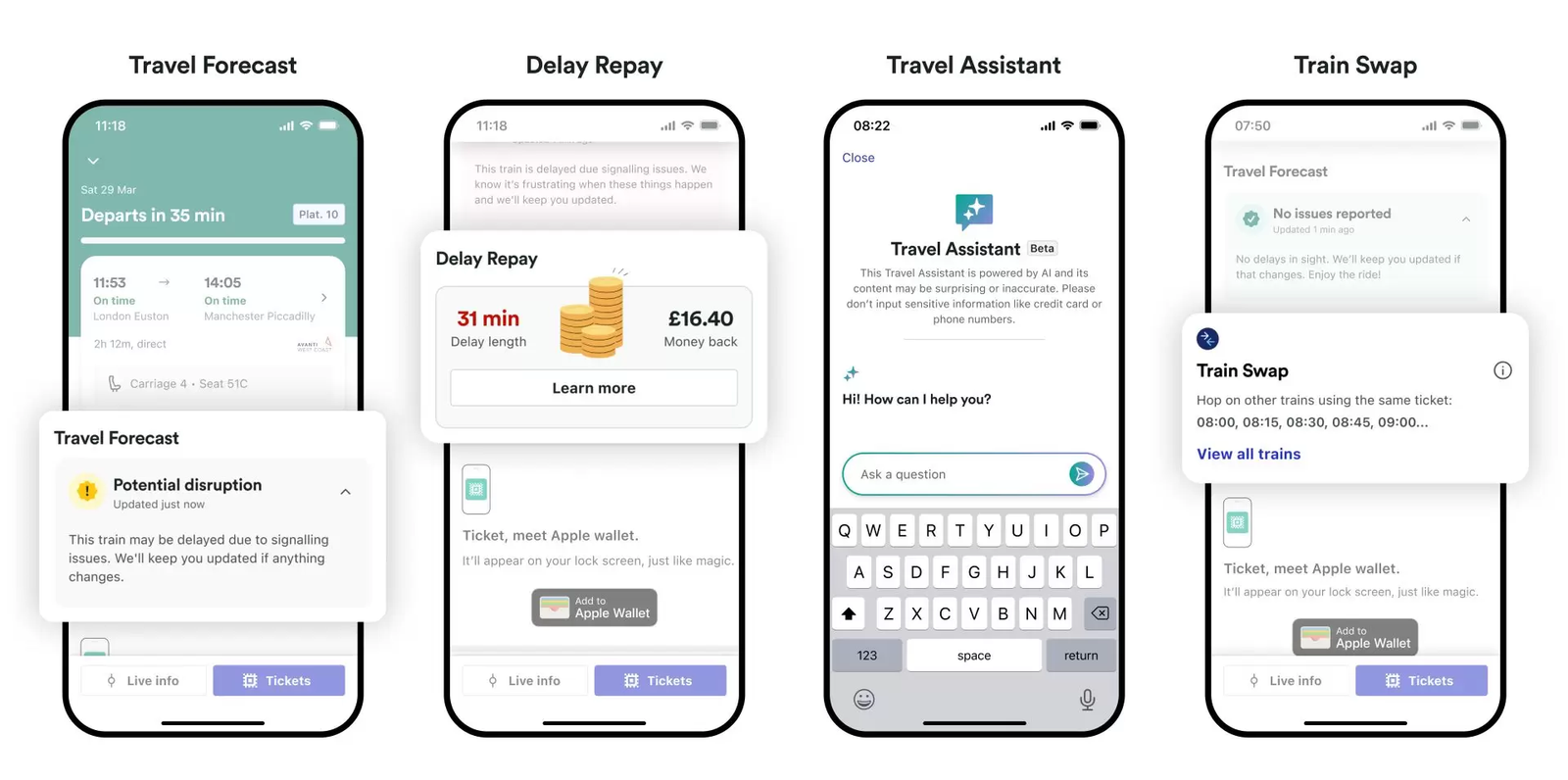
The Trainline app makes travelling by train and coach easier by allowing passengers to search for journeys, compare ticket prices, book trips, manage railcards, and access mobile tickets. Many travellers in the UK and across Europe depend on it because they can organise their journeys without visiting a ticket office. However, like any mobile application, Trainline can sometimes experience technical problems that prevent certain features from working correctly.
When the trainline app not working, users may experience different problems, such as the app refusing to open, freezing during a search, failing to process payments, showing login errors, or not displaying purchased tickets. Sometimes the problem appears suddenly, even when the application was working normally a few hours earlier. This can be particularly frustrating when someone needs to access a ticket shortly before boarding a train.
There is not always one explanation for these problems. An unstable internet connection, an outdated application, temporary server difficulties, corrupted cached data, or a device compatibility issue can all affect performance.
Why Is the Trainline App Not Working?
There are several reasons why the trainline app not working properly. One common possibility is a temporary technical issue affecting the service. Trainline relies on online systems to retrieve journey information, display available fares, process bookings, and synchronise ticket details. If one of these services experiences difficulties, certain features might become unavailable even when the rest of the application appears normal.
Another possible cause of trainline app not working is a problem with the user’s internet connection. The application needs a reliable connection to retrieve updated journey information and communicate with Trainline’s booking systems. A weak mobile signal, unstable Wi-Fi network, or temporary network interruption can prevent searches from loading or cause the app to display an error. Sometimes other applications continue working, but a particular service may still struggle with the available connection.
Device-related problems can also affect the experience. An outdated version of Trainline, limited storage space, background application restrictions, or temporary software conflicts may cause unexpected behaviour. For example, the app might open but freeze when someone selects a journey or attempts to move to the payment screen. Identifying whether the issue affects one feature or the entire application is an important first step towards finding a solution.
Check Whether Trainline Is Down or Experiencing an Outage
Before changing settings on a phone, it is sensible to check whether Trainline is experiencing a wider service problem. Sometimes an application stops responding because the company’s online services are temporarily unavailable. When this happens, restarting a phone or changing its settings may not resolve the issue because the problem is outside the user’s device.
Passengers can check independent outage-monitoring websites to see whether other people are reporting similar difficulties. These websites collect user reports about problems with websites and mobile applications. A sudden increase in reports about Trainline login failures, trainline app not working, payment problems, or app crashes may suggest that other customers are experiencing something similar. However, these reports are not official confirmation of an outage and may not represent every region or service.
If the service appears operational but the application continues to fail, focus on checking the internet connection, updating the app, and troubleshooting the affected feature. A regional issue, individual account problem, or isolated payment failure may still occur even when most customers can use the application normally. Avoid repeatedly changing your phone settings if the problem is caused by a temporary service interruption.
How to Fix the Trainline App Not Working on Android and iPhone
One of the easiest ways to resolve a trainline app not working is to close Trainline completely and open it again. On an Android phone, open the recent applications screen and swipe Trainline away. On an iPhone, open the app switcher and close the application. Wait a few seconds before launching it again. This simple step can resolve temporary freezing, unresponsive buttons, and loading problems without changing any important settings.
If restarting the application does not help, restart your mobile phone. A device restart can clear temporary software problems and refresh background processes that may be affecting the app. After the phone switches back on, connect to a stable internet network and try opening Trainline again. It is also worth checking whether other applications are working normally, as this can help identify a wider device or network issue.
If the trainline app not working continues, check whether an application update is available. Android users can visit Google Play, while iPhone users can open the Apple App Store. Search for Trainline and check whether an Update option appears. Installing the latest available version can resolve compatibility problems and bugs that affect older releases. Keeping your phone’s operating system updated can also help maintain compatibility with modern applications.
Check Your Internet Connection and Network Settings
trainline app not working, A poor internet connection is another common reason why the Trainline app is not loading. When passengers search for train times, compare fares, or attempt to purchase tickets, the application needs to communicate with online services. If the connection is unstable, the search page may remain blank, journey results may take too long to appear, or the payment screen may fail to load.
Start by switching between Wi-Fi and mobile data. For example, if Trainline is not working on your home Wi-Fi, turn Wi-Fi off and try using mobile data. If you are already using mobile data, connect to a reliable Wi-Fi network. You can also switch Airplane Mode on for a few seconds and then turn it off to refresh the phone’s network connection. These basic checks can help when the trainline app not working is caused by a temporary connection interruption.
trainline app not working, It is also worth checking whether your phone has restricted background data or mobile data access for Trainline. On Android, open Settings, select Apps, find Trainline, and review its mobile data permissions. On an iPhone, visit Settings and find Trainline to check its available permissions. Menu can vary depending on the operating system and device manufacturer. If other websites and apps are also struggling to connect, restarting your router or contacting your internet provider may be more useful than reinstalling Trainline.
Clear Trainline App Cache and Resolve Loading Problems
Temporary stored data can sometimes cause unexpected problems with mobile applications. On Android devices, Trainline may retain cached information to help certain screens and features load more efficiently. However, if temporary files become corrupted or outdated, the application may freeze, respond slowly, or fail to display information correctly. Clearing the cache can help refresh the app without necessarily removing the account information stored elsewhere.
trainline app not working, To clear the cache on most Android phones, open Settings, select Apps or Applications, find Trainline, and open Storage. If a Clear Cache option is available, select it and then reopen the application. The exact instructions may differ between Samsung, Google Pixel, Motorola, and other Android devices. It is important to distinguish between clearing the cache and clearing all application data. Clearing data can remove locally stored information and sign-in details, so avoid doing this unless you understand the consequences.
trainline app not working, iPhone users do not generally have a separate system-wide option for clearing an individual app’s cache. Instead, they can close the application, restart the device, and check for updates. If these steps fail, reinstalling Trainline may help. Before removing the application, make sure you know your login details and can access your booking confirmation emails. This is particularly important if you have an upcoming journey and need to retrieve a Mobile Ticket. Reinstalling the app should be a troubleshooting step rather than the first solution.
Trainline App Login Not Working: How to Fix Account Problems
trainline app not working, Login problems can prevent users from accessing their saved journeys, purchased tickets, railcards, and account information. Sometimes the application repeatedly returns to the sign-in screen, displays an incorrect password message, or refuses to complete the login process. These issues can be caused by incorrect account details, a temporary authentication problem, an outdated application, or a problem with the sign-in method.
First, check that you are using the same email address associated with your Trainline account. If you originally created your account using an Apple or Google sign-in option, try using the same method rather than entering a different email address and password. If you cannot remember your password, use the password-reset option and follow the instructions sent to your registered email address. Check your spam or junk folder if the reset message does not arrive in your main inbox.
trainline app not working, If the app still refuses to sign in, try accessing your account through the official Trainline website using a mobile or desktop browser. This can help determine whether the problem is limited to the application or also affects account access online. Avoid repeatedly attempting to sign in with different passwords, as this can make troubleshooting more difficult. If neither method works, contact Trainline customer support through its official help service and explain the error message you are receiving.
Trainline App Payment Not Working or Booking Failing
trainline app not working, Payment problems are particularly frustrating because they can prevent passengers from completing a booking even after selecting the correct journey. Users may find that the checkout page keeps loading, a debit or credit card is declined, or an error appears after selecting Apple Pay, Google Pay, or PayPal. These problems can result from temporary payment-processing difficulties, incorrect billing information, bank security checks, or an unstable internet connection.
If trainline app not working, check that your payment details are correct and that your bank has not blocked the transaction. Make sure your card has sufficient available funds and that any required bank authentication has been completed. You can also try another supported payment method if the original option continues to fail. Payment options can depend on the currency, customer location, and availability of particular payment services.
trainline app not working, One important precaution is to check whether your booking was successful before attempting another payment. Sometimes a transaction may appear as pending even though the booking has not been completed. A bank can temporarily reserve money during payment authorisation. If the booking fails, the payment may be released automatically, depending on the bank’s processing time. Check My Tickets, your Trainline account, and your confirmation email before trying again. If money appears to have been taken but no ticket has arrived, contact Trainline support rather than making repeated purchases.
Trainline Tickets Not Showing in the App
trainline app not working, Another common concern is when a purchased train ticket does not appear in the Trainline app. Passengers may complete a booking but find that the My Tickets section is empty or that their mobile ticket cannot be downloaded. This can happen when they are signed into a different account from the one used during booking, when ticket information has not synchronised properly, or when they have selected a different delivery method.
trainline app not working, Start by checking that you are logged into the correct Trainline account. Open the app, visit My Tickets, and look for the relevant journey. If the ticket is still missing, search your email inbox for the booking confirmation and check the spam or junk folder. The confirmation email can be useful because it may contain an eTicket attachment or a link to manage the reservation. You can also try retrieving your booking through the Trainline website using the available booking details.
trainline app not working, It is important to understand the difference between an eTicket and a Mobile Ticket. An eTicket is generally provided as a PDF that can be opened from an email, while a Mobile Ticket is accessed through the Trainline app and must be activated according to its instructions. Eligible digital tickets can often be accessed without an internet connection once downloaded. If you have a Mobile Ticket, follow its activation instructions and avoid activating it too early because activation can be final. Always check the ticket conditions before travelling.
Alternative Ways to Access Trainline
If the trainline app not working after trying the suggested solutions, you do not necessarily have to cancel your travel plans. Open the official Trainline website through your phone’s browser or use a computer to access your account and manage your booking.
Depending on your ticket type, you may be able to retrieve your booking, view journey information, or access an eTicket PDF through your confirmation email. You can also contact Trainline customer support if you cannot access an important booking or resolve an account problem independently.
Conclusion
The Trainline app not working can be caused by several different issues, including internet connection problems, outdated software, temporary service interruptions, login difficulties, payment errors, and missing ticket information. The best approach is to identify which feature is affected and try the simplest relevant solution first. Restarting the application, checking your network, updating the software, and clearing the Android cache can resolve many common problems. If your ticket is missing, check your account and confirmation email before attempting another purchase. Most importantly, keep a copy of your booking information and make sure you can access your ticket before leaving for the station. If the problem continues, Trainline’s official support service is the best place to request assistance.